
Lodge Corporation · App support
Cadence Metronome
A little time. A lot of possibility. A precise metronome, six distinct instruments and a workspace for your sheet music.
Built by Dinky Doodle & Ryklav
01 · Getting started
Find your tempo. Make it count.
Choose an instrument and get straight to practice. No account or extra sound downloads are needed.
Choose your instrument and tempo
Select Heritage, Studio, Orbit, Art Deco, Quartz or Concert. Tap the large tempo marking to choose its note value and number, use the slider or one-step buttons, or tap your tempo.
Set the rhythm
Choose a time signature and subdivision. The 6/8, 9/8 and 12/8 presets supply their usual dotted-quarter main beats and eighth-note divisions. Tap a numbered beat to mute or unmute it.
Start playing
Press Start metronome. Leave the main interface untouched for 10 seconds to enlarge the selected instrument; touch anywhere to return. Adjust click voice, accent and volume in Settings.
Bring your score
Open the music button beside Settings, import a PDF and keep the metronome beside it. Add annotations, save practice sections or use Picture in Picture while reading music in another app.
02 · Common questions
Back to a steady beat.
I cannot hear the metronome.
Press Start metronome and check the click volume in Settings, your device’s media volume and its selected speaker, headphones or Bluetooth output. Check that the beat buttons have not all been muted. Choose Unmute all beats in Settings if needed.
After a call, an audio interruption or unplugging headphones, check the output and press Start again if playback has stopped.
What do the note and number in the tempo marking mean?
The number counts the displayed note value per minute. Tap the large tempo marking to choose a quarter note, eighth note, dotted quarter note or half note, then set a number from 30 to 240. The equivalent markings underneath describe the same musical speed.
For example, dotted quarter = 60 is equivalent to quarter = 90 and eighth = 180. Changing the reference note while keeping the same number changes the musical speed. Rounded equivalents use an approximation sign.
How do I practise in 6/8, 9/8 or 12/8?
Tap the time signature in Rhythm, or beside the score controls, and choose a preset. In 6/8, two dotted-quarter main beats each divide into three eighth notes. 9/8 and 12/8 have three and four main beats. These presets select a dotted-quarter tempo reference and audible eighth-note divisions.
The numbered beat buttons represent the main beats; muting one also mutes its divisions. The subdivision control can play main beats only or divide each beat into 2, 3 or 4 equal parts. In 6/8, the default three parts are ordinary eighth notes. Other presets and custom signatures are available.
Why did the controls disappear?
While playback is running on the main screen, 10 seconds without touching the interface zooms the selected metronome into full screen. Touch anywhere to return to the controls without stopping playback. Touches, scrolling and held controls restart or suspend the countdown.
The sheet-music workspace keeps the score visible and does not enter this standalone full-screen view.
How do I keep a small metronome over another app?
Start playback, then use the Picture in Picture button to float the selected instrument. The app’s Automatically float when switching apps option is on by default. Automatic transitions also depend on your device and system settings.
On iPhone, check Settings → General → Picture in Picture → Start PiP Automatically. On iPad, this may be under Picture in Picture or Multitasking & Gestures. The operating system controls the window’s position, size and close/return controls. Use the return control or Cadence Metronome’s floating-window button to restore the instrument.
How do I import and mark up sheet music?
Open the music button beside Settings and import a readable, unlocked PDF from Files. Cadence Metronome creates its own editable copy; the original stays in Files. A cloud file provider may need to download the document first.
Choose Annotate to draw with a finger or Apple Pencil, add a text note, or erase a Cadence Metronome mark. Choose Read to scroll and pinch to zoom. Use Share to export the annotated PDF copy. Image-only scores must first be saved or exported as a PDF using another app.
How do saved practice sections work?
Navigate to the passage, set its tempo, note value and meter, then use Sections or the plus button in Practice sections. Give the passage a name. Selecting it restores its page, tempo, note value, meter and subdivision.
Sections belong to the imported score on this device. They are not embedded in an exported PDF; the PDF does include its saved pen and text annotations.
Will my scores appear automatically on my other device?
Cadence Metronome does not provide app-managed cloud sync. Preferences, imported score copies and section settings are local to each device. You can share an annotated PDF and import that PDF on the other device. Apple or device backups may include local app data according to your settings.
A PDF or annotation could not be saved.
Check that the device has enough free storage. If Cadence Metronome reports an annotation-save failure, keep the workspace open and use Retry saving. Unsaved marks remain open until you explicitly discard them or the app is closed by the system.
Importing requires a readable PDF with at least one page. Unlock password-protected documents in another app before importing them. For persistent problems, contact support with the steps and error message; you can describe the problem without sharing your score.
The clicks seem delayed through Bluetooth.
Bluetooth and other audio routes can introduce output latency. For a lower-latency practice setup, try the device speaker or wired headphones and check the selected output. Cadence Metronome schedules its clicks using the audio sample clock; the display animation does not schedule sound.
How can I remove a score or my local data?
Open the score library, use its Delete action and confirm. This removes Cadence Metronome’s PDF copy, its annotations and its saved sections. It does not delete the original in Files or exported copies.
Use Delete App in iPhone or iPad storage settings to remove the app and its local data. Offload App preserves its documents and data. Manage exported files and backups separately. See the privacy policy for details.
Which devices are supported, and is an account needed?
Cadence Metronome supports iPhone and iPad with iOS 17 or iPadOS 17 or later, in portrait and landscape. Heritage, Studio, Orbit, Art Deco, Quartz and Concert share the same metronome engine. Picture in Picture depends on system support.
The app works offline and does not require a Cadence Metronome account. Importing from a cloud Files provider, sharing a document or contacting support can use services you choose separately.
03 · From the app
An instrument for your practice.
Genuine iPhone and iPad app captures. Select an image to see the full screenshot.
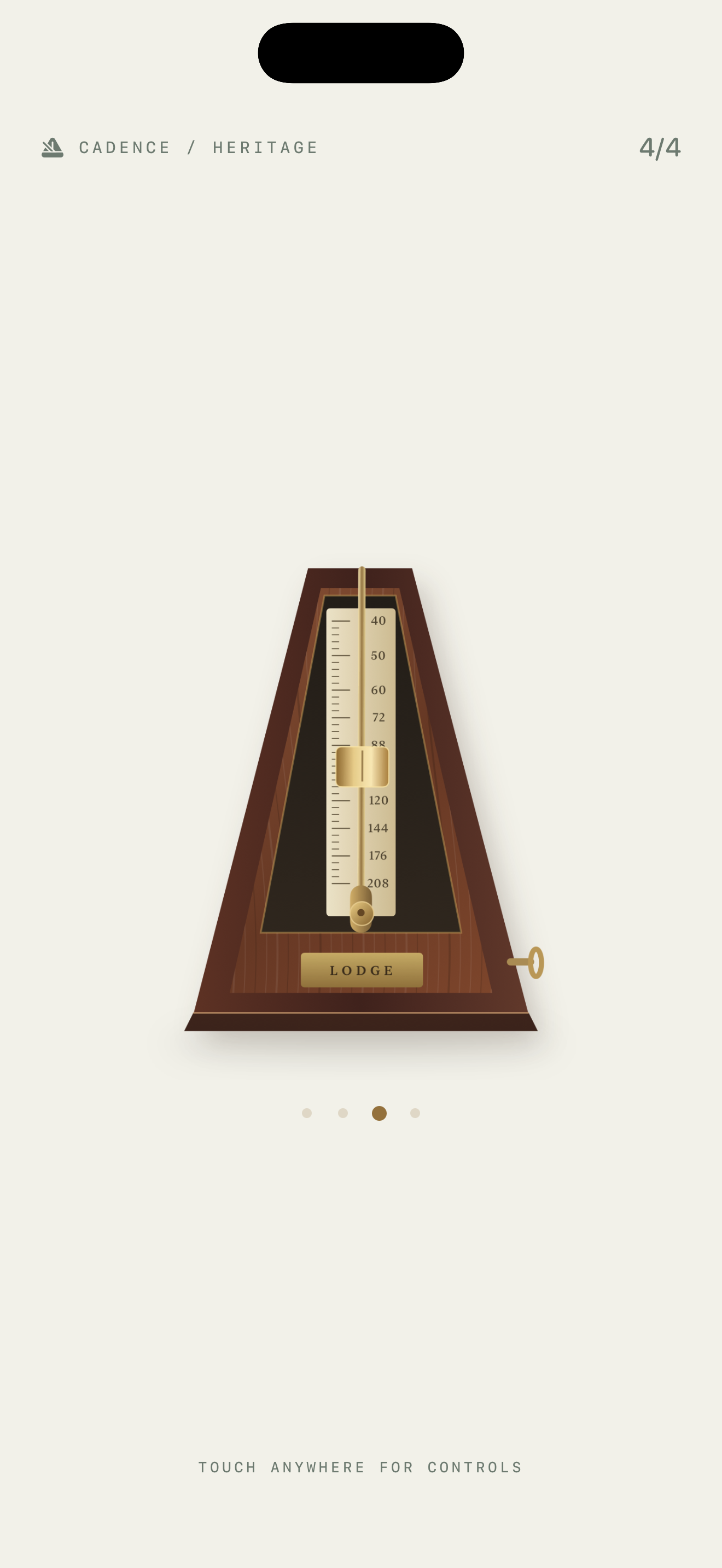
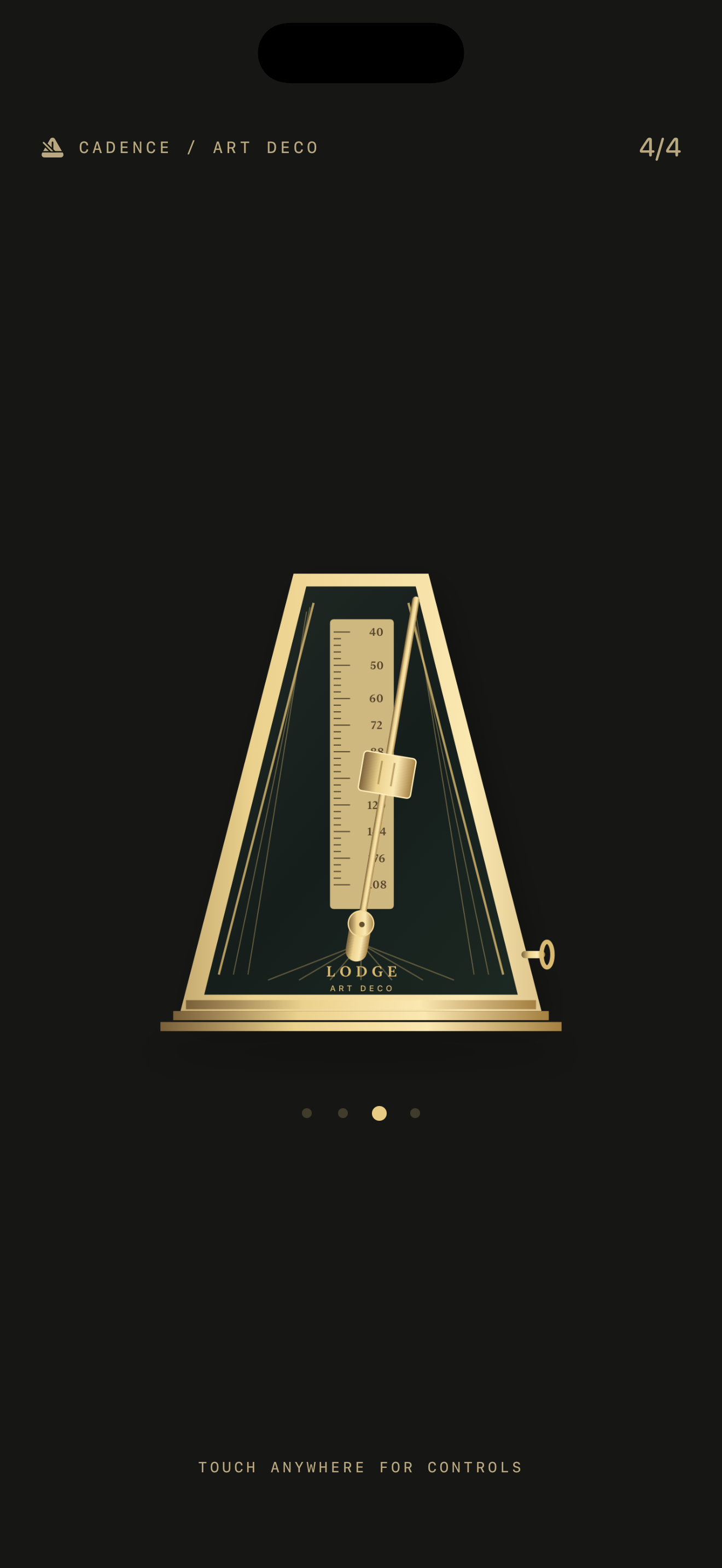
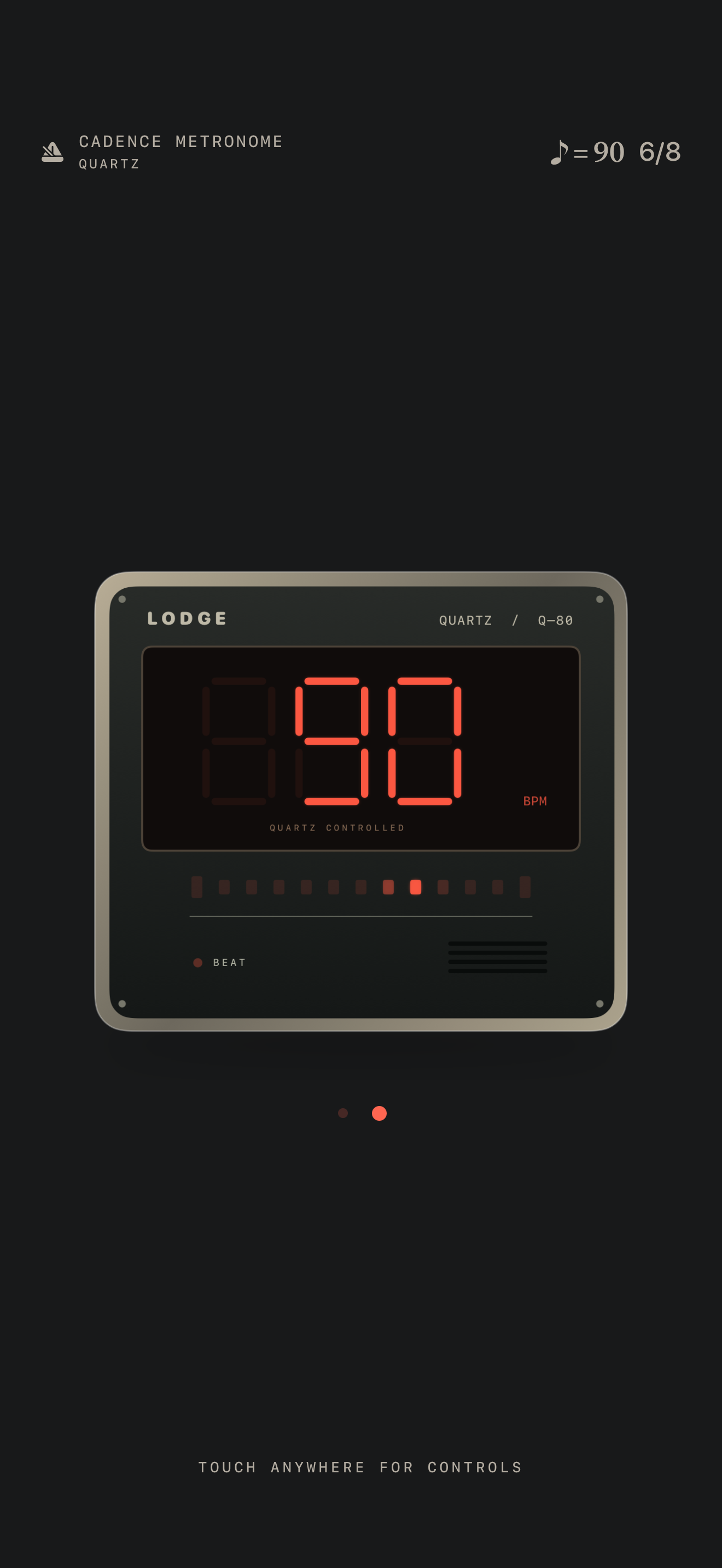
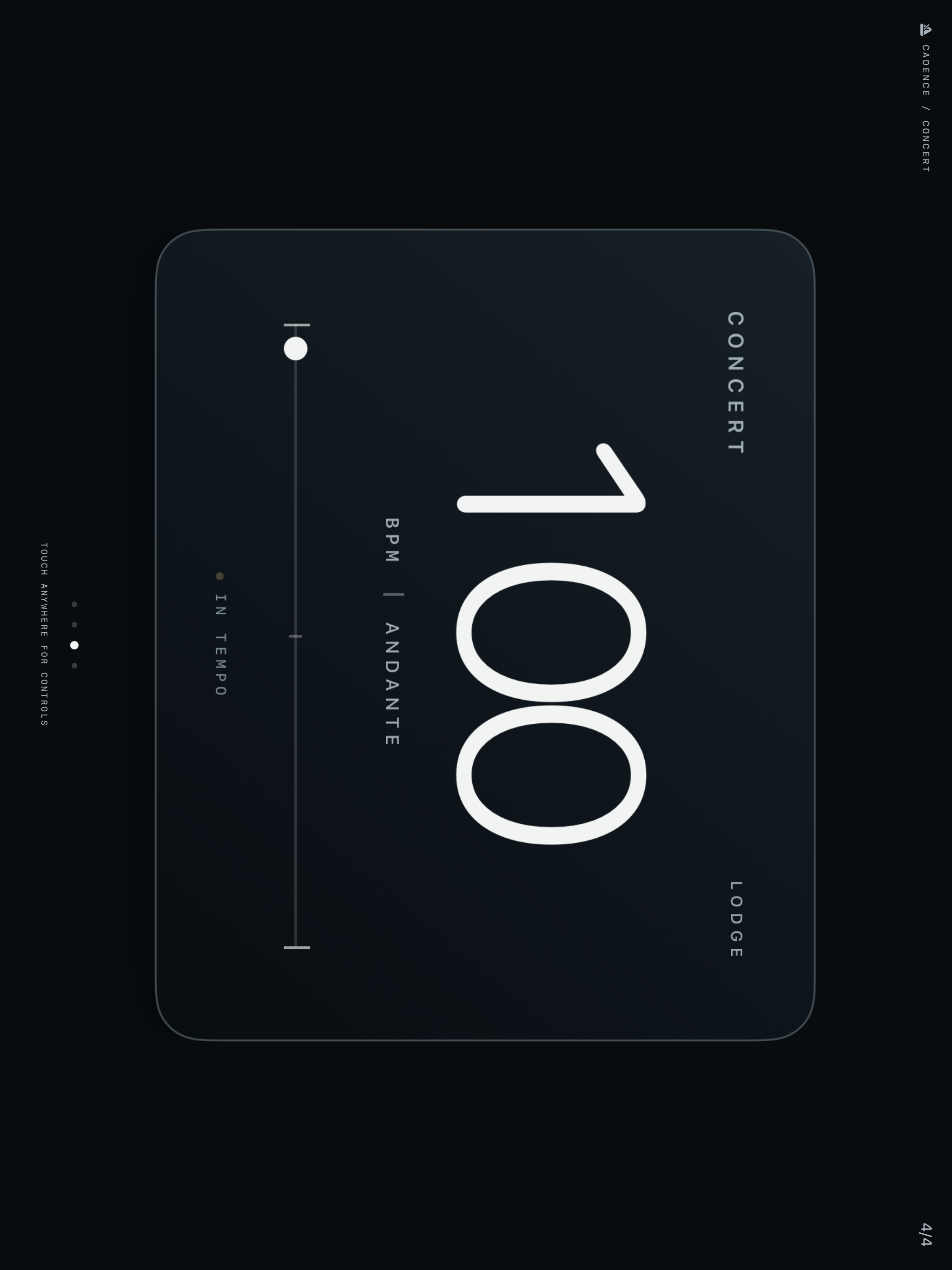
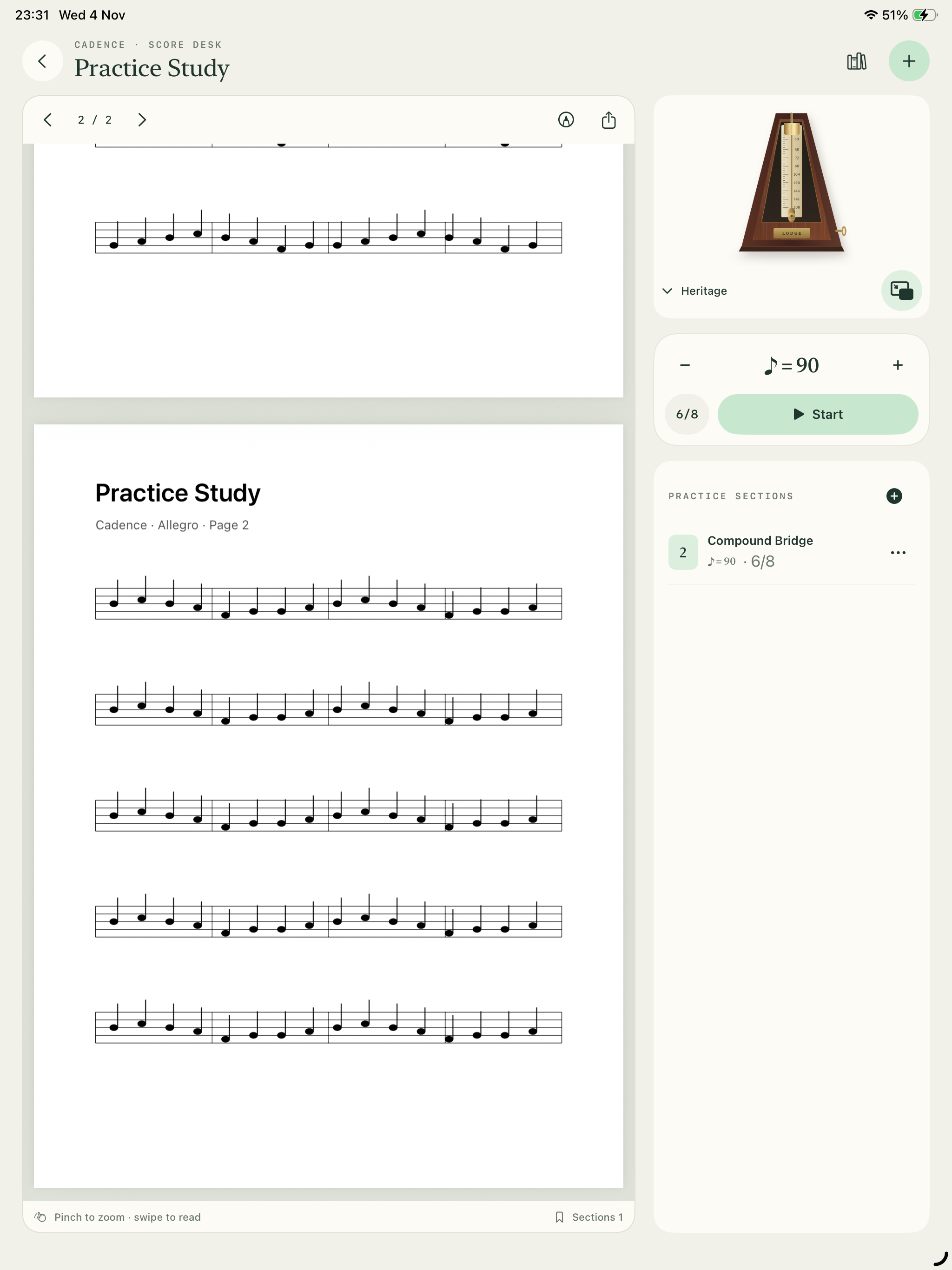
The score image uses a sample practice document. Screenshots are representative; your app version and preferences may differ.
04 · Contact support
Tell us what’s happening.
For technical issues, questions, feature requests and accessibility feedback, email Lodge Corporation.
Include Cadence Metronome, your device model, iOS or iPadOS version, app version/build if known, and the steps that led to the issue. For timing or sound questions, include the note value, tempo, meter and audio output.
Please share only the information needed to describe the issue. You can describe a score problem without attaching your sheet music. How support messages are handled.