

Lodge Corporation · App support
Skybreaker
A little plane. A big fight. Pilot the Swift from mountain valleys to deep space in a colourful arcade adventure.
01 · Getting started
Take flight. Find your opening.
Skybreaker is a single-player side-scrolling shooter. You can play the campaign and unlocked bonus missions offline. Game Center is optional and is used to sync saves.
Choose your mission
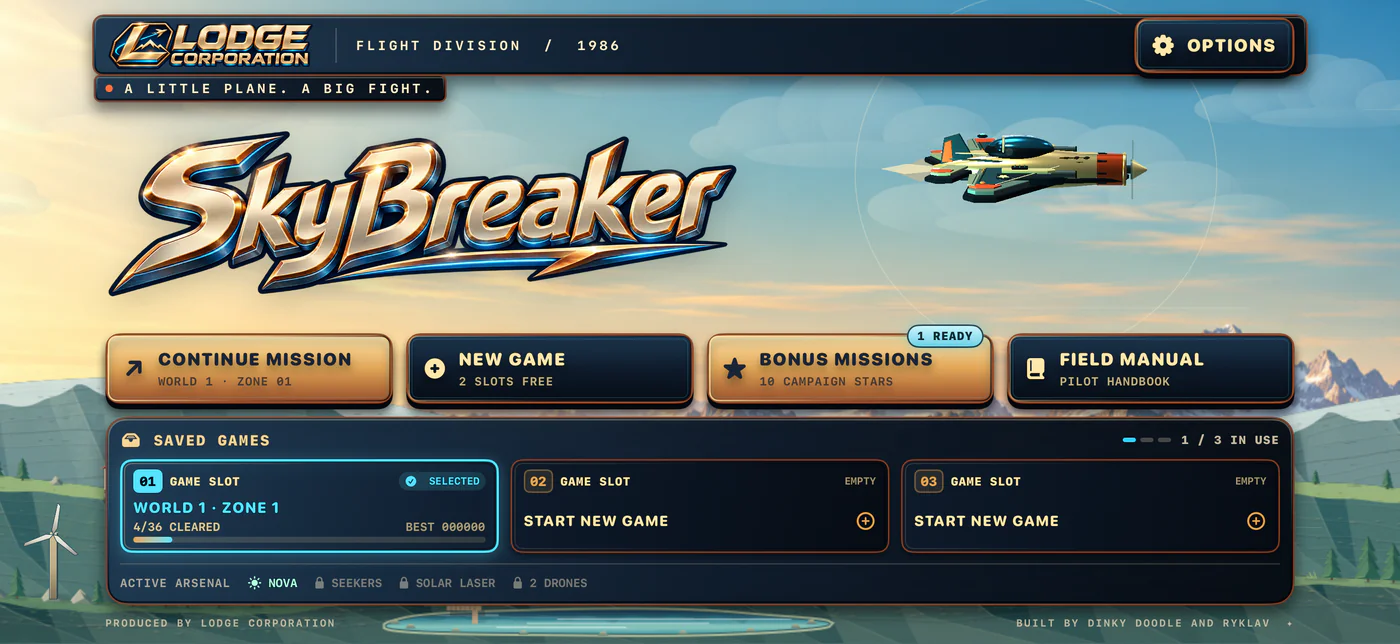
Hold your iPhone or iPad in landscape. On the title screen, tap New Game to start a campaign or choose a slot under Saved Games. Tap Continue Mission to open Mission Control, choose an unlocked world and zone, then tap Launch Mission. Open Field Manual for the full flight briefing and enemy guide.
Steer while the Swift fires
Drag anywhere in the airspace to move your plane. Your main weapon fires automatically. Line up shots while avoiding enemy fire, meteors, ground hazards and the walls of selected canyon or tunnel runs.
Collect and use your arsenal
Fly over glowing power-ups for temporary upgrades or repairs. Use the ability buttons when they show Ready; their labels also show locks, recharge and whether a target is needed.
Clear the zone
Fight through three waves and destroy the guardian’s weak points across all three stages. Many zones feature a meteor shower. Selected zones feature a canyon, tunnel, asteroid belt or high-speed chase. Clear a zone to unlock the next across four worlds and 36 zones.
Pause or revisit a flight
Tap the pause button at the top right, then choose Resume Flight or Return to Hangar. Completed zones have a checkmark in Mission Control and can be replayed. After a loss, use Fly Again in a campaign zone or Replay Bonus in an orbital mission.
02 · Weapons & unlocks
Your next world brings new firepower.
- Nova: available from the first flight. Its charges damage enemies and boss weak points and clear hostile projectiles already in flight. Armoured enemies may survive.
- Seekers: clear world one to unlock two guided missiles. Tap the button when it is ready and targets are present; it recharges during active flight.
- Solar Laser: clear world two to unlock a sustained beam. It also requires a target and recharges between uses.
- Defense drones: clear world three to unlock two orbiting drones that draw enemy fire. They deploy automatically at the start of each zone or retry and can be destroyed.
World-clear weapon unlocks stay with the saved game and remain available when you replay earlier zones. Temporary drops include Triple Shot, Shield, Repair and Overdrive. Triple Shot spreads your fire, with each bullet dealing half the damage of a normal bullet.
03 · Saves & bonus missions
Keep your progress and earn more flights.
How do saved games work?
Each of the three Saved Games slots has its own campaign progress, best score, stars and bonus rewards. The game saves progress automatically. New Game uses a free slot when one is available. If all slots are full, the game asks you to confirm before replacing one. Replacing a synced slot can update the copy on your other devices.
How do I sync progress between iPhone and iPad?
In versions that support Game Center sync, open Options on the title screen and tap Connect Game Center. On both devices, sign in to Game Center and iCloud with the same Apple Account, enable iCloud Drive and connect Skybreaker. Sync applies at the title screen.
If progress is missing, return to the title screen on both devices, open Options and use Sync now. Check the last synced time before reinstalling. Disconnect stops syncing on that device and preserves the local save. Audio settings are saved separately on each device. How Game Center sync handles your data.
How do I earn stars and unlock bonus missions?
Open Continue Mission, select a zone and choose Star Objectives to see its three objectives and the stars you’ve earned. You can replay a zone to earn its remaining stars.
Every 10 campaign stars unlocks an orbital bonus mission. Choose Bonus Missions on the title screen. The Ready badge counts unlocked missions you haven’t cleared. Your first clear of each bonus mission earns a choice of one permanent campaign upgrade.
04 · Common questions
Let’s get you flying again.
I can’t hear the music or sound effects.
Open Options on the title screen and check the separate Music and Sound effects settings. During a mission, the pause menu’s Sound On / Sound Off button controls both together. Then check your device’s volume, Silent Mode and audio output.
The soundtrack and effects are bundled with the app; an internet connection is not needed for playback.
How do I unlock more zones and worlds?
Defeat the guardian to clear the current zone. The next zone then becomes available; clearing zone nine opens the next world. Open Continue Mission to choose an unlocked world and zone. Checkmarks and the zones-cleared count in Mission Control show your progress.
Why can’t I activate Seekers or Solar Laser?
Seekers unlock after completing world one; Solar Laser unlocks after world two. Once unlocked, check the button’s status. It may be recharging, waiting for a target or on standby during a story, briefing or transition. Use it when it shows Ready.
Defense drones unlock after world three and deploy automatically, so they do not have an activation button.
How do I defeat a guardian?
Aim for the guardian’s glowing weak points, such as engines or weapon systems. Destroy the weak points in each of its three stages. It transforms and changes attacks as the battle develops; watch its warning cues and keep space to dodge. Hits on the armoured hull do less damage than direct weak-point hits.
The game feels slow or stops responding during a busy fight.
Install the latest available app update and restart the app. If the device is hot, let it cool before trying again. Low Power Mode and other device activity can affect real-time game performance.
If it happens again, tell us the world and zone, what was happening on screen, your device model, OS version and app version/build. A screenshot or a short description of the steps helps us investigate.
How do the story screens and briefings work?
Each world begins with an illustrated story, followed by Commander Avery Vale’s mission briefing. The story advances automatically; you can also browse its pictures or choose Skip Story. Briefings end automatically, or you can tap Take Flight to skip one. The pause button pauses these sequences too.
Which devices are supported, and do I need an internet connection?
Skybreaker supports iPhone and iPad running iOS 17 or iPadOS 17 or later, in landscape orientation. The interface is in English. Gameplay, stories and audio work offline after installation. An internet connection is needed to download or update the app and to use optional Game Center sync.
No account or subscription is required. The app contains no advertisements or in-app purchases.
Does Skybreaker collect personal information?
Skybreaker stores progress on your device and uses Apple’s services for optional save sync. Lodge Corporation does not receive your game saves. Our privacy policy explains saved data, Apple services, support email and website visits.
Can I request a feature or report an accessibility issue?
Yes. Use the contact section below and choose the relevant topic. Explain what you were trying to do and what would make the experience work better for you.
05 · From the app
From the mountains to the stars.
Genuine iPhone and iPad captures. Select an image to see the full screenshot.
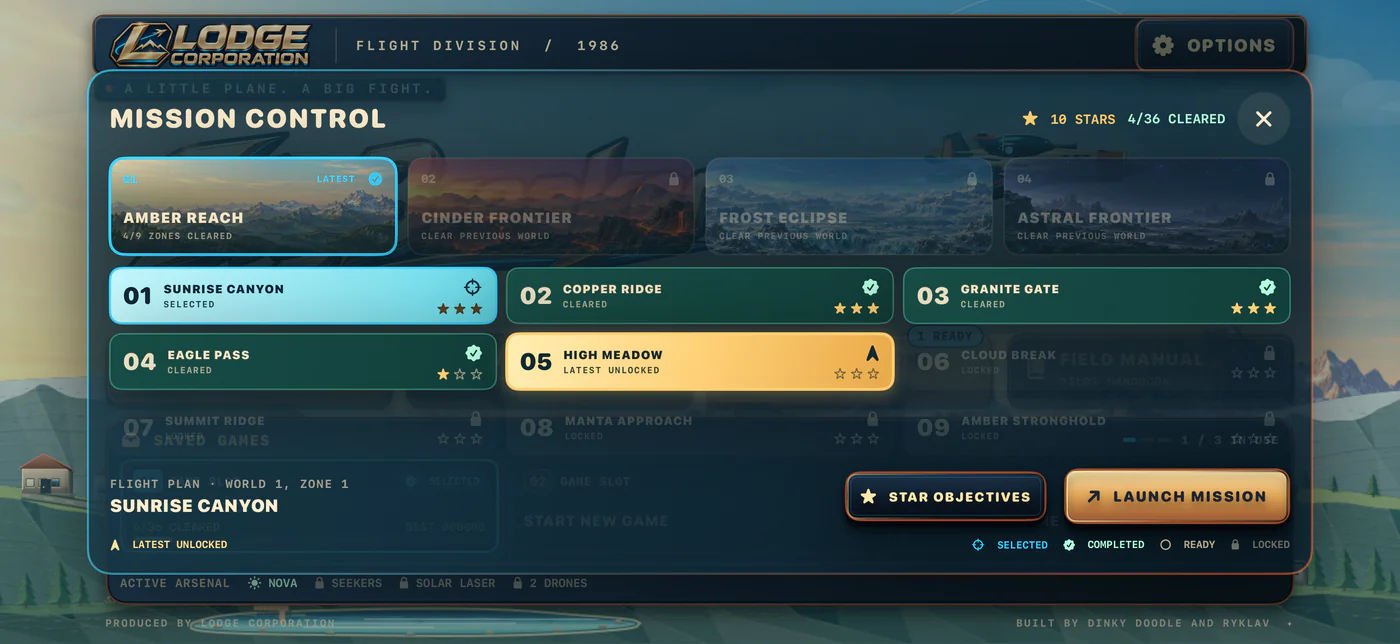
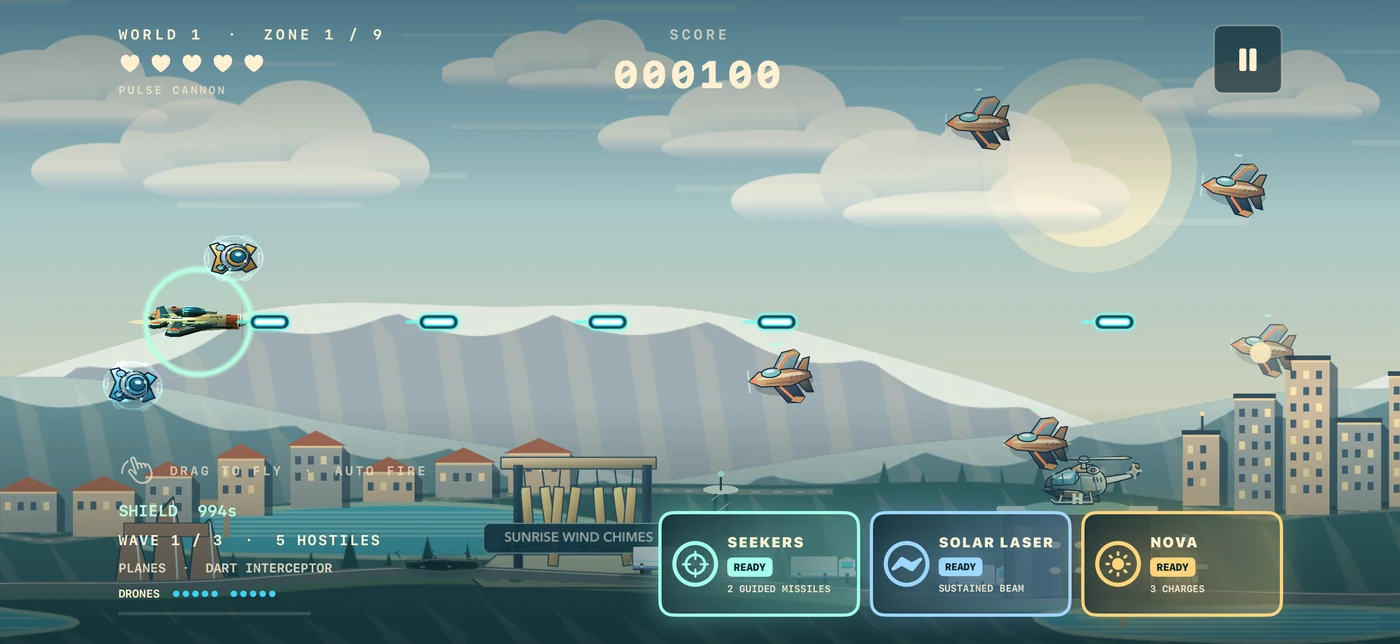
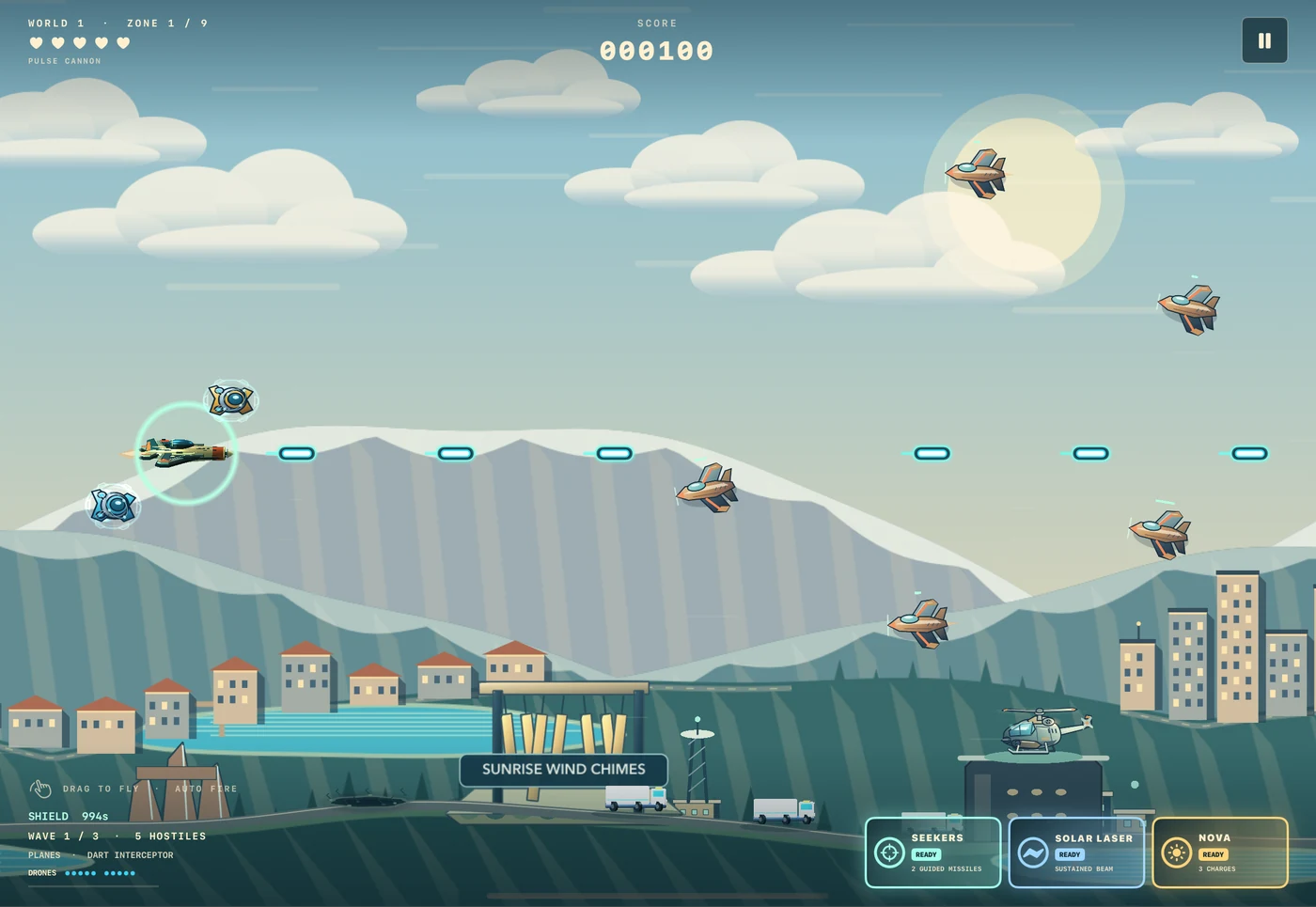
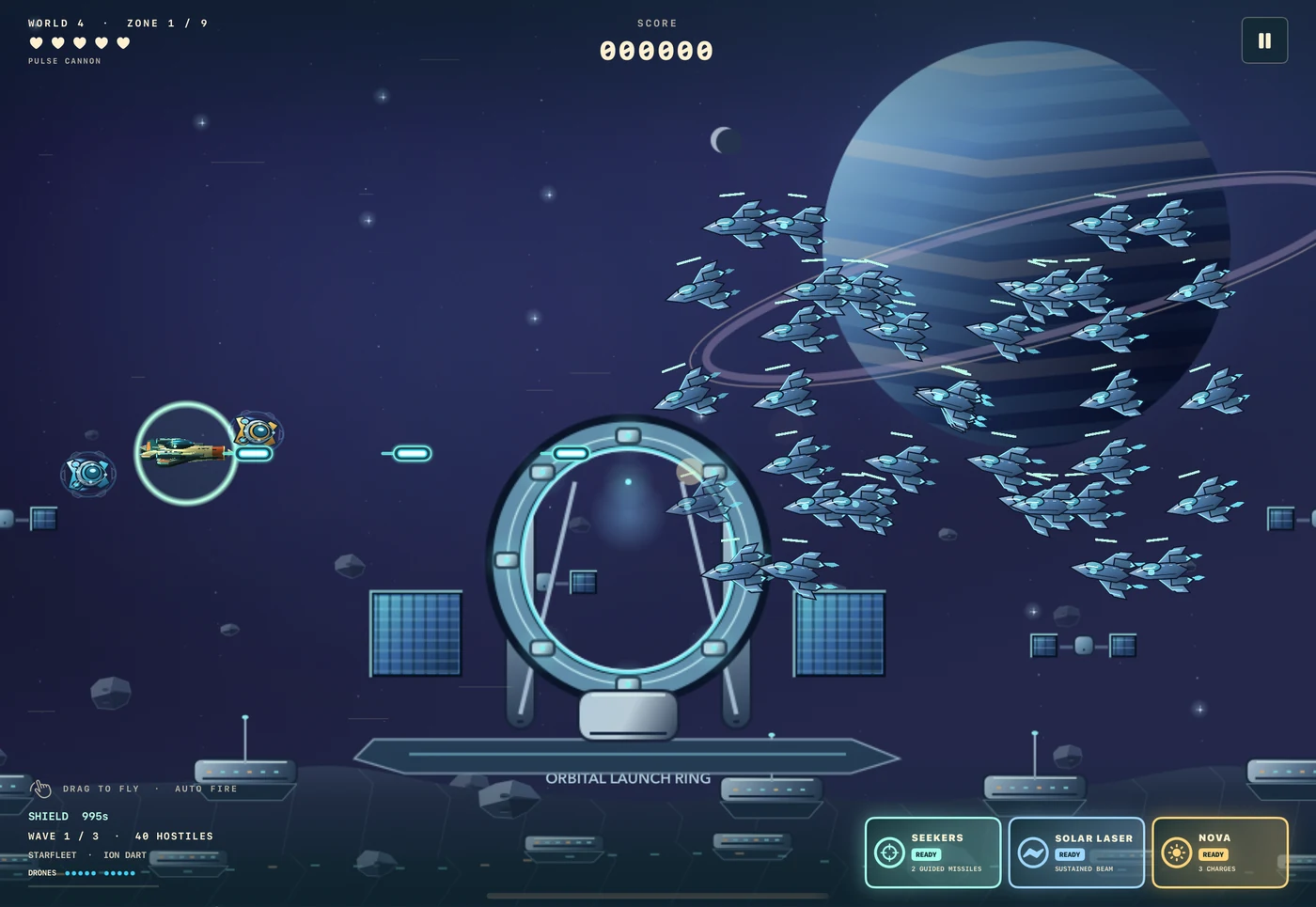
Available missions and equipment depend on your saved progress. Flight screenshots are from earlier builds.
06 · Contact support
Tell us what happened.
For game problems, questions, feature requests and accessibility feedback, email Lodge Corporation.
Include your device model, iOS or iPadOS version, app version/build, and the affected world and zone or orbital bonus mission. For sync issues, include what the Game Center status says and when the last sync happened. Tell us what happened and how to reproduce it. You can attach a screenshot in your email app.
Share only the details needed to describe your issue. Please do not include passwords, payment details or Apple Account credentials. How support messages are handled.