
Lodge Corporation · App support
Today is
the day
A little perspective on the past. Find your way through historical events, save your favourite filters, and keep the dates that matter to you.
Developed by Dinky Doodle and Ryklav
01 · Getting started
One date. Many ways to explore.
Choose your day
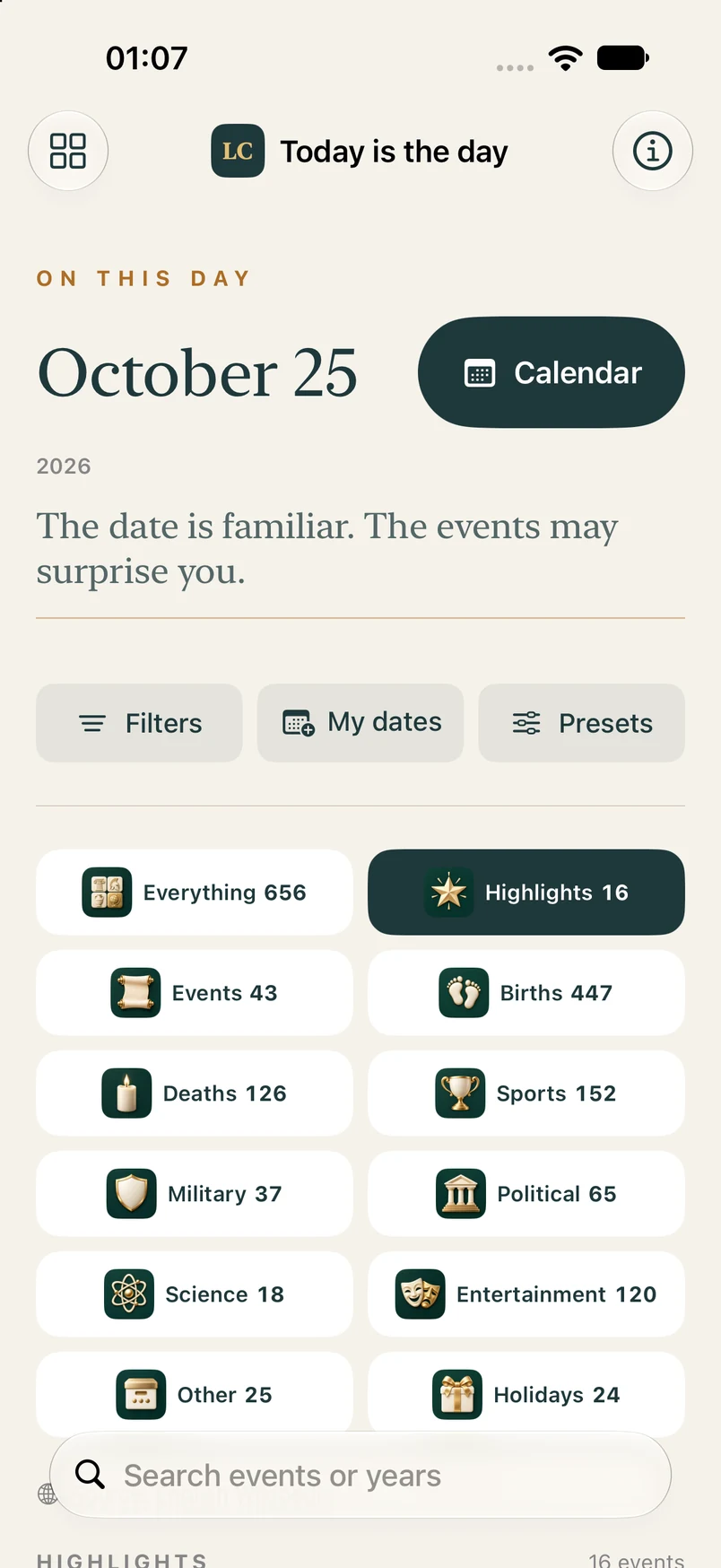
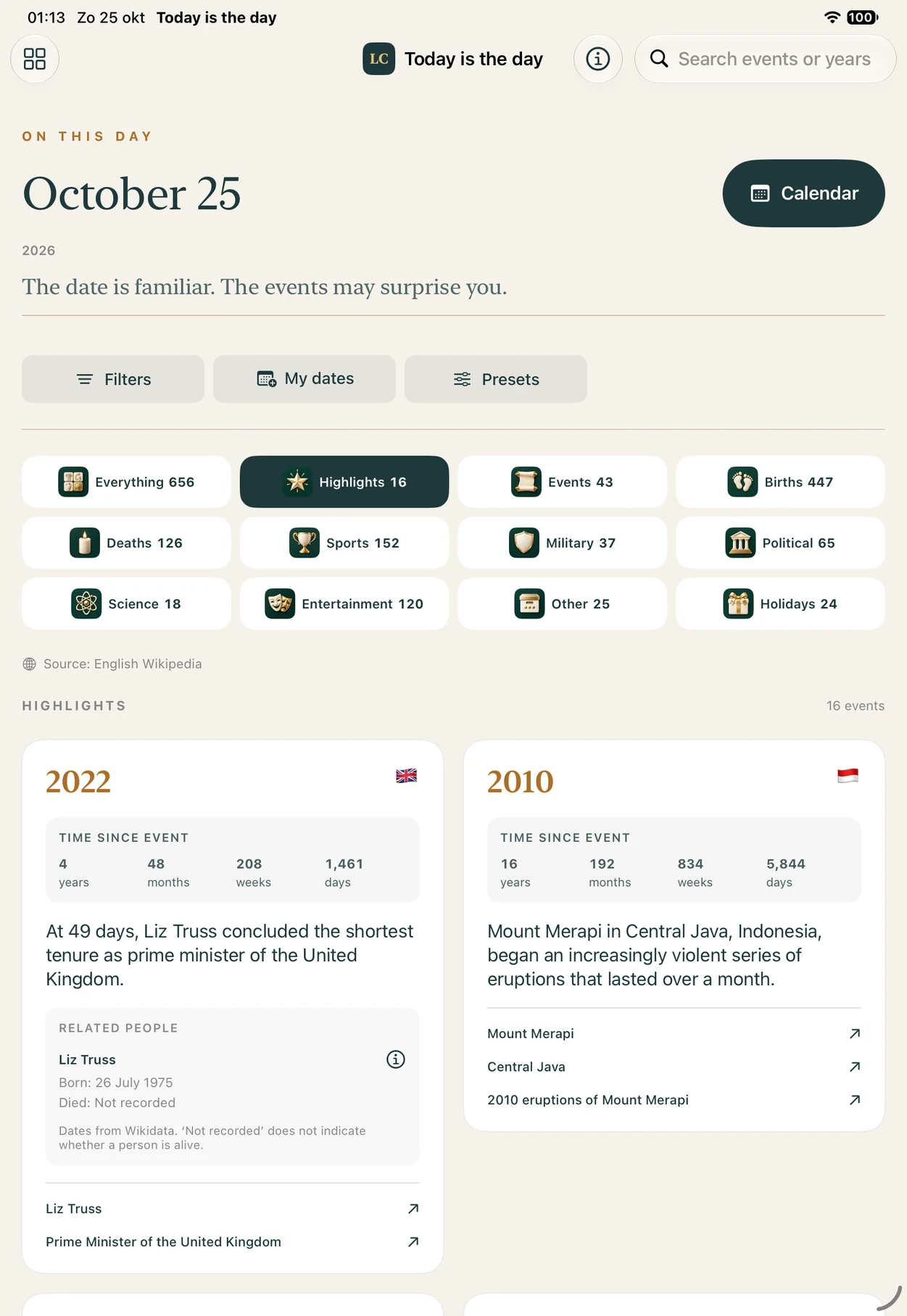
Open the app for today’s history or use the calendar to select another date. Open a category to browse its events and time trackers. Choose List, Map or Time Machine to explore those events in different ways.
Find your perspective
Use Filters for Wikipedia edition, places, Space, years and ordering. Name a set to save it as a preset and bring it back with one tap.
Make room for your own dates
Open My Dates to add a birthday, anniversary or other milestone. Enter an older year directly and add an exact time only when you know it.
Events are loaded online from Wikipedia. Related people, countries and dated event locations use Wikidata and may take longer to appear. Source coverage and automatic topic or place matching can be incomplete.
02 · A closer look
More ways to make history yours.
Check and refine an event
Topic categories and related countries use source context to reduce incidental matches. A country association is broader than an exact event location. Open the source to check a record, or choose Edit categories on an event to save your own topic choices. Restore automatic categories removes that local correction. These choices stay on your device or browser and do not edit Wikipedia.
Read in your own way
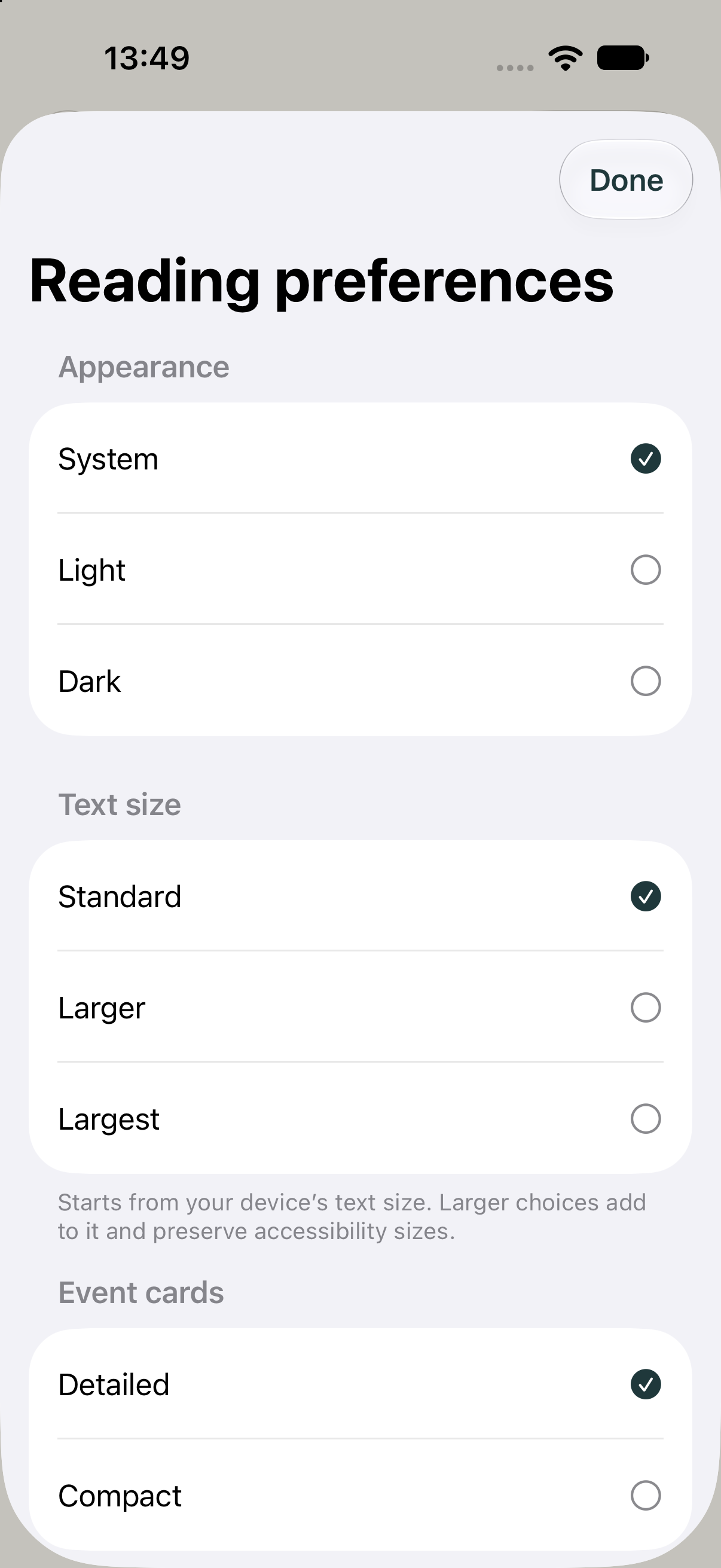
Open Aa / Reading near Information for System, Light or Dark appearance, text size and Detailed or Compact cards. Show historical images is on by default and can be turned off here; a previously saved off choice stays off. Available photographs and clearly labelled historical portraits include credits and a licence link when enlarged.
See a whole life in context
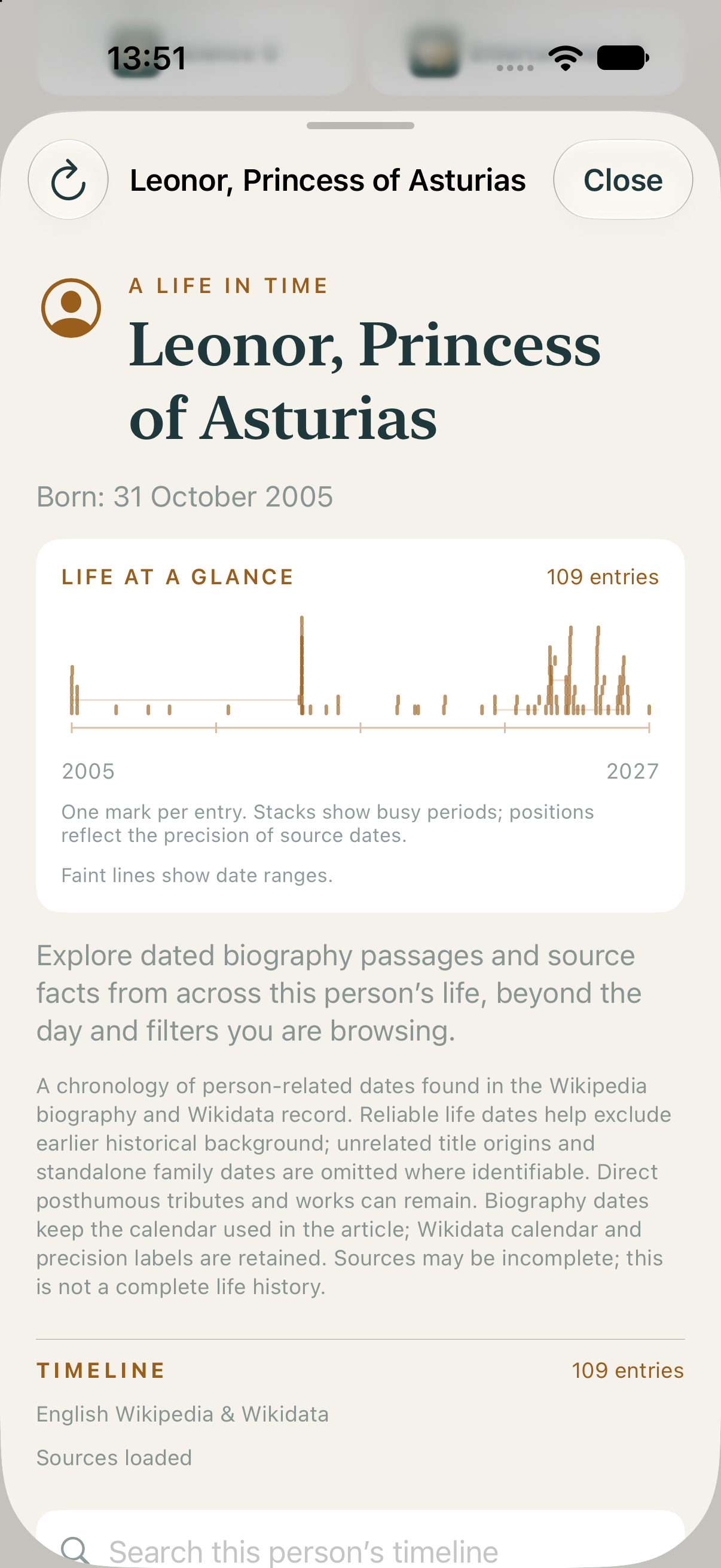
Choose Person timeline beneath a related person. Life at a glance places one mark for each loaded dated entry on a horizontal timeline, stacking marks where dates cluster. Search the history, change the list order and follow the sources. It covers dates beyond the day you are browsing; source coverage can still be incomplete.
Reading preferences and category corrections are local to this app installation or browser. They do not sync automatically. Photographs and person histories depend on suitable online source data, so they may not be available for every event.
03 · Common questions
A clearer view of your day.
How do I choose a different day?
Tap the calendar and choose a date. The app loads historical events recorded for that month and day. Historical event trackers always compare each event with the current date and time, even while browsing another year. The selected year and reference time remain available for personal-date comparisons.
Which categories can I explore?
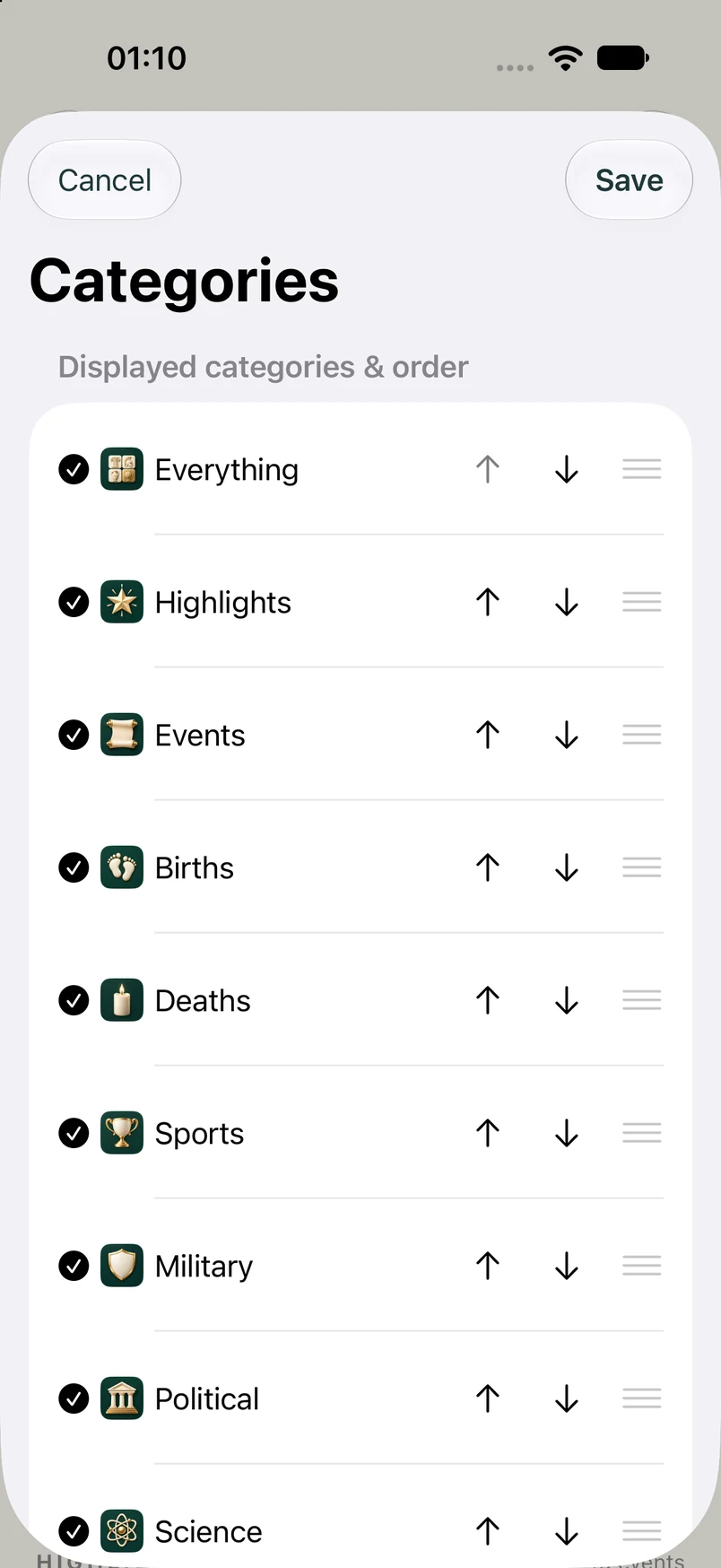
There are 13 categories: Everything, Highlights, Events, Born, Passed, Sports, Military, Political, Science, Entertainment, Disasters, Other and Holidays. Everything combines the source entries without duplicates. Other contains entries outside the topic categories and excludes Born, Passed and Holidays.
Use the category settings to choose which categories are shown and change their order. Counts beside each name show how many events match your current filters. Topic categories use the event description and source section labels. Incidental article titles do not assign topics. Short launch or production entries can use one contextual subject link. Classification may still be imperfect. Choose Edit categories on an event to save your own topic choices, or Restore automatic categories to undo them. Corrections stay on that device or browser and do not edit Wikipedia or its original sections.
How can I adjust reading preferences?
Choose the Aa / Reading control near Information. Set appearance to System, Light or Dark, increase the text size, and choose Detailed or Compact event cards. Choices are saved on this device or browser. Native text sizes start from your device’s accessibility setting.
Compact cards preserve the full event description, time tracker, primary person dates, related countries and source access. Use Details & sources to reveal additional linked people and articles. Restore reading defaults to return to the standard layout.
Can I show photographs and historical portraits?
Photographs are on by default. Open Aa / Reading to turn Show historical images off or on. Your choice is saved on this device or browser; a previously saved off preference stays off. Available related photographs appear as their event cards approach the screen. Select a photograph to enlarge it and read the full credit, licence and Commons source.
Images come from Wikimedia Commons via the linked Wikipedia subject and its verified Wikidata record. The app tries the Wikipedia image and reusable Wikidata image alternatives. Photographs are preferred; when none is available, a verified person may show a clearly labelled historical portrait (artwork), such as a painting or drawing. A verified person may also show a labelled Historical coin image; coin artwork can show a stylised likeness. A licensed image linked directly to a verified person can also appear as Related image when its medium is not recorded. Credits and licence checks apply to every image. Some events have no suitable image. A related photograph may show the person, place or subject at another date; it is not presented as proof of the exact event. Compact cards can show photographs too. Turn the option off to return to an image-free layout.
Which other subjects have timelines?
Choose a City, Country, Organization, Ship, Spacecraft, Space mission, War & conflict, Building & landmark, Sports team, Sports competition, Technology & invention, Film, Book, Music, Disaster & incident, Family or Dynasty timeline button on an event when a directly linked subject can be verified. The popup combines that subject’s dated Wikidata facts and date mentions from its matching Wikipedia article, across calendar dates. Search the entries, change their order and use the horizontal overview to see the dates currently shown in the list.
Non-person timeline headers do not show birth, death or age labels. Family and dynasty histories can include relevant member life dates from their own article. Article dates keep their original context and may concern related people or events. They are an overview of available source dates, not an exhaustive or independently verified chronology. Sources load when a timeline is opened; the selected Wikipedia edition is used when linked, with a matching English article as a fallback.
What does a person’s timeline show?
Choose Person timeline under a related person. This action appears for linked records confirmed as people. The popup explores that person’s history across all calendar dates, independent of the selected day, category, country filters and event search. It combines dated biography passages, the person’s structured Wikidata facts and dated events or notable works directly linked to that person.
The horizontal Life at a glance overview has one mark per loaded entry. Stacks show periods with more entries. It includes every timeline page and remains oldest to newest even when you search or reverse the list. Year-only and month-only dates keep that precision; their marks use the middle of the recorded period rather than claiming an exact day.
Search by year or words and choose Oldest first or Newest first. The app initially shows 100 entries. Choose Load more to reveal up to 100 more. The website uses Previous and Next pages of up to 100 entries. Open an entry’s source to check the full context. Use the app’s refresh control, or Retry when offered on the website, if a source could not load.
The selected Wikipedia edition is used where a matching biography is available; an English fallback for that same person is identified when needed. Reliable life dates and source context help exclude unrelated background, inherited-title origins and standalone family dates. Direct posthumous tributes or works can remain. Dates retain their recorded precision and calendar. Sources may be incomplete, and this is not a complete or independently verified life history.
How do List, Map and Time Machine work?
Choose List, Map or Time Machine above the events. All three views use the same selected date, category, Wikipedia edition, search and shared filters. Switch back to List for ordinary event browsing.
What do the map pins mean, and why are some events missing?
The Places view shows sourced event locations, birthplaces for Born records, and places of death for Passed records. A birth or death place belongs to the principal person in that source record, rather than an incidental person mentioned in an article. The source event year must match the Wikidata date; any recorded month and day must also match. A year-only or month-only date keeps that precision, with Wikipedia supplying the selected calendar day. Qualified or uncertain dates and locations, and dates in a different calendar, are omitted. The place label and linked source explain the evidence.
Coverage is incomplete: some source entries have no sourced place. Country associations, citizenship and a birthplace from an unrelated record are never substituted for an event place. Those events remain in List, in Unmapped in the app, or under Without a location on the website. Available places stay visible while more load. Use the retry button when offered if some locations could not be checked; Wikidata may ask the app to wait when its service is busy. Tap a pin to read its events and check the linked source.
Map opens at a world overview and keeps your chosen view as locations and countries load. Zoom and pan yourself, or use the explicit fit button when you want to see the currently available locations. Use Move map to drag the map, then turn it off to scroll the page easily. Map backgrounds and country outlines represent the modern world, not the borders at the time of an event. The native app uses Apple Maps; the website serves its Natural Earth country outlines locally.
What does Related countries show?
Choose Related countries inside Map for a broader view. Country counts and shading or overview markers link events to countries through source mentions and Wikidata associations. Matches use explicit country names or nationalities, named linked places and the principal person’s citizenship. Birthplaces, death places, origins and unrelated linked people do not add country flags. The native app and website also recognize Dutch country names and common nationalities.
These are country associations, not exact event locations. A record may relate to several countries, so country totals can overlap. Tap a country or choose its count to browse the related events. Historical countries and territories without an outline or overview marker remain accessible in the country list. Switch to Places for sourced event, birth or death places.
How do I travel through Time Machine?
Choose decades or centuries to group the selected day’s filtered events. Bar heights and counts show how many events fall in each period. Move across the chart and tap a bar to read that period’s events using the selected event order. Use the event page controls when a period contains many entries.
BC periods use no year zero. Annual or undated entries are kept in a separate group; a missing year is never invented. Time Machine uses the same category, search and shared filters as List and Map. The website also has an era slider and an All eras button.
How do shared filters and presets work?
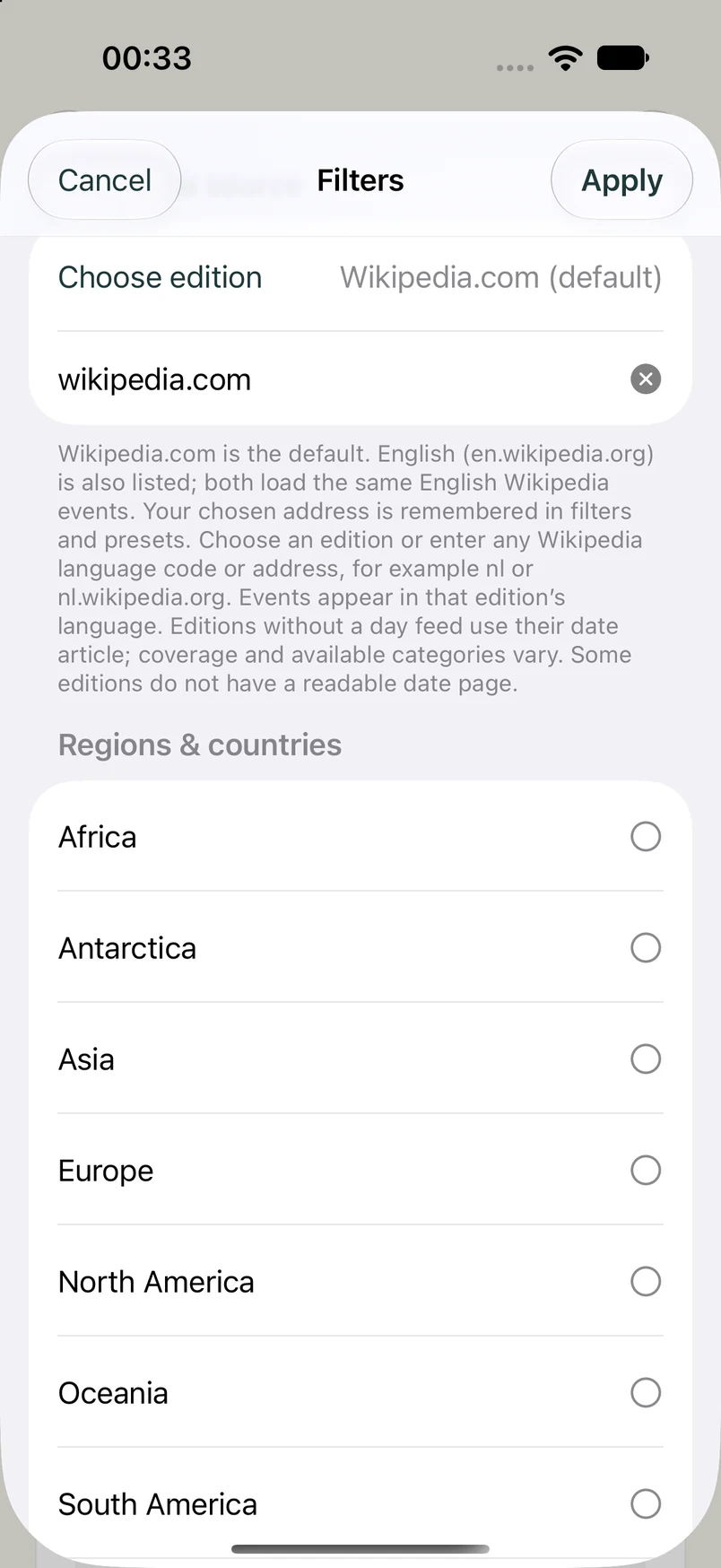
Open Filters to select multiple continents, countries and/or Space. These place selections form a combined set; the year range and search narrow that set further. The same filters apply to every category. Newest first is the default order; oldest first and source order are also available.
Give the filter set a name and use Save preset & apply. A preset shortcut brings it back quickly. Open Presets to manage and reorder your saved sets.
Why are there two English Wikipedia choices?
Wikipedia.com (default) and the explicit English (en.wikipedia.org) choice use the same English Wikipedia data. The app remembers which option you selected in a preset. You can also choose another Wikipedia edition or enter a valid edition code or address, such as nl or nl.wikipedia.org.
The interface remains in English; event text follows the selected edition. Available events and categories differ between editions. When a structured feed is unavailable, the app may read that edition’s calendar page. It does not substitute English events for an unavailable local edition.
Why does a category have fewer events, or none at all?
Coverage depends on the selected date, Wikipedia edition and filters. Some editions do not supply Highlights or all source categories. Try Everything or Events, clear restrictive filters, or select a different edition. The app cannot show events that the source does not provide.
How are years, months, weeks and days counted?
Each historical event number is a separate whole-unit total between the event and the current date and time. The selected month and day identify when the event occurred; they never freeze the elapsed counter. The values are not the leftover parts of one duration: for example, the days total includes all days in the interval. BC dates use no year zero.
Hours, minutes and seconds appear only when an event supplies a usable time with an explicit UTC offset. A date-only source does not gain an invented clock time.
Why are a person’s dates or a country flag missing?
Birth and death details come from Wikidata for people confirmed in linked source records. A date may have only a year or month, an approximate or qualified value, or a different calendar. Missing death information does not mean that a person is living.
Country flags represent related countries found through explicit mentions and source associations. They are not a reconstruction of historical borders. Details load after the events and may be incomplete; use Retry when offered. You can open the source to check its context.
Loading is slow or an event will not appear.
Check your internet connection, then retry. Wikipedia and Wikidata are separate services, and person or country details can arrive later than the event list. Changing the date or edition starts a new source request. Source outages, rate limits or incomplete data can affect results.
The app keeps a limited cache of previously loaded source data, which can help during a connection problem. It is not a complete offline history library. If the issue persists, email us the selected date, category, Wikipedia edition and steps to reproduce it.
How do I add a personal date from many years ago?
Open My Dates, add a date, and enter the year directly—for example, 1973—with its month and day. You do not need to page backward through decades in a calendar. Add a title and, if useful, a note or exact time. You can edit or remove a saved date and open its day in the history view.
Do my dates and presets sync with the website or another device?
The native app saves personal dates, presets and category preferences locally on that device. There is no automatic sync with the website or another device. Device backups may contain this local data.
The website companion has its own browser-local library and JSON export/import in Information. That website backup function is separate from the native app; the native app does not currently offer JSON export/import.
Where do article links open?
In the iPhone and iPad app, source links open in your browser. The website companion displays supported Wikipedia and Wikidata pages in an in-page dialog, with an option to open them directly on the source website.
How can I report an issue or request an accessibility improvement?
Use the contact details below for technical questions, feature ideas, accessibility feedback or privacy requests. Include the relevant screen or control and what would make it work better for you. Avoid including personal date notes or other sensitive information unless they are necessary for your request.
04 · From the app
At home on iPhone and iPad.
Genuine captures of the native app. Select a screenshot to open a larger view.
Reading and person-timeline captures: app 1.4.0 (12), 31 October 2026. Earlier overview, filter and category captures show representative app screens. Historical entries and details vary with the date, selected edition and source availability.
Historical text in these screenshots is excerpted and reformatted from Wikipedia contributors: October 25, October 31 and Leonor, Princess of Asturias, under CC BY-SA 4.0. Related Wikidata facts are CC0.
05 · Contact support
Tell us what you need.
Email Lodge Corporation for help, feature requests, accessibility feedback and privacy questions.
For a source or display problem, include the selected date, category and Wikipedia edition, plus your device and OS version. Add the app version/build if you know it. You can attach screenshots in your email app; please avoid sharing private notes that are not needed to explain the issue.
Only include information needed to answer your request. How support messages are handled.